




|
Genius Maker - School software - Maths softwareSOLVE ANY TRIANGLE -TRIANGLE SOLVER SOFTWARE |  |
The Triangle solver is a mathematical triangle solving software, which facilitates to solve triangle with any 3 known parameters and to draw the triangle. Also this software supports for taking a nice printout of the triangle as well as to save the triangle image as a picture file.
Download Free Genius Maker Educational Software - Including Triangle Solver Software
File Size 3.5 MB (approx) Free Edition version 3 |
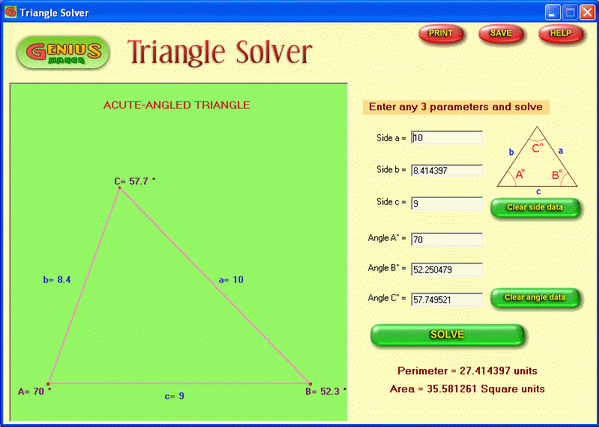
- Open Genius Maker software and click "Triangle Solver" button. It opens the Triangle Solver window as shown above.
- On the left side panel, you will see 6 parameter boxes meant for 3 sides and 3 angles of triangle.
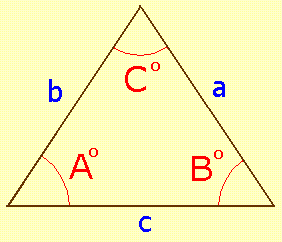
- The convention for naming the sides and angles are as given below.
- Just enter any 3 known parameters out of 6 parameters. For example, let us enter the following values.
- Side a = 10
- Side c = 9
- Angle A = 70°
- Cilck "Solve" button.
- Now we can see that the software solves for the triangle computes and displays the 3 parameters, which have not entered as below.
- Side b = 8.414397
- Angle B = 52.250479°
- Angle C = 57.749521°
- You may see that the solved triangle getting drawn in the right side panel to the exact proportion.
- You may use "Clear side data" button to erase the displayed values for sides and "Clear angle data" button to erase the displayed values for angles.
Important note : If you enter more than the 3 parameters, the software will take only the first 3 parameters and the rest will be ignored. For instance, if you enter values for "side a", "side c", "angle A" and "angle B", then the values for "side a", "side c" and "angle A" only will be taken into account and the "angle B" value will be ignored and over-written by the calculated value.
Special cases:
- When you enter values for all 3 angles and do not specify the value for any side, it is a mathematically indeterminate problem with infinite number of solutions. In such a case the software will assume a value of unity for side c and then solves the triangle. A pop-up message will inform you regarding this assumption.
Perimeter and Area : The software computes for the perimeter and area of the triangle also and they are displayed below the input boxes.
Print : If you want to take a printout of the triangle, it is easy. Just click the "Print" button on top. It opens the Printer dialog. Select options for printer, paper orientation and number of copies etc and then click print.
Save : If you want to save the triangle as an image, you can do so by clicking the "Save" button on top. It opens the Save dialog. Select a suitable location and name for the file and then click "Save".
Download Free Genius Maker Educational Software - Including Triangle Solver Software
File Size 3.5 MB (approx) Free Edition version 3
|